Tutorial
On the right is the simulation. To run the simulation,
press the play button; the pause button will pause the simulation;
and the rectangular stop button will reset the simulation.
It can only be edited when the simulation is stopped. Below is a
image of these buttons.

To add particles and edit other properties of the simulation, head to the Edit tab
or press the following button. To learn more about how to edit the simulation, keep
reading here.
To select a particle, click on it. The red outline shows that it
is selected.
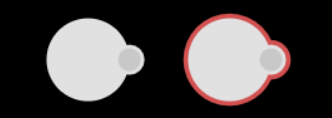
Once selected, clicking and dragging the particle will change its position.
Clicking and dragging on the gray circle on the edge of the particle will change
the position and rotation of the particle.
To draw potential barriers (walls), click and drag on empty space in the simulation.
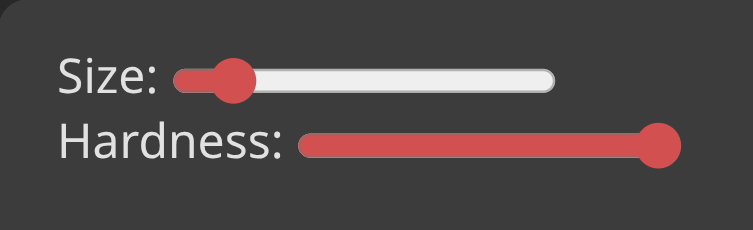
The thickness of the barriers and how much they reflect the wave packet can be changed
by the Size and Hardness
sliders on the Edit tab.
Click on the erase  button to toggle
the ability to remove walls.
button to toggle
the ability to remove walls.